
Buyer’s guide

Best Digital Wall Calendar for Families: Top Picks by Screen, Sync & Subscription

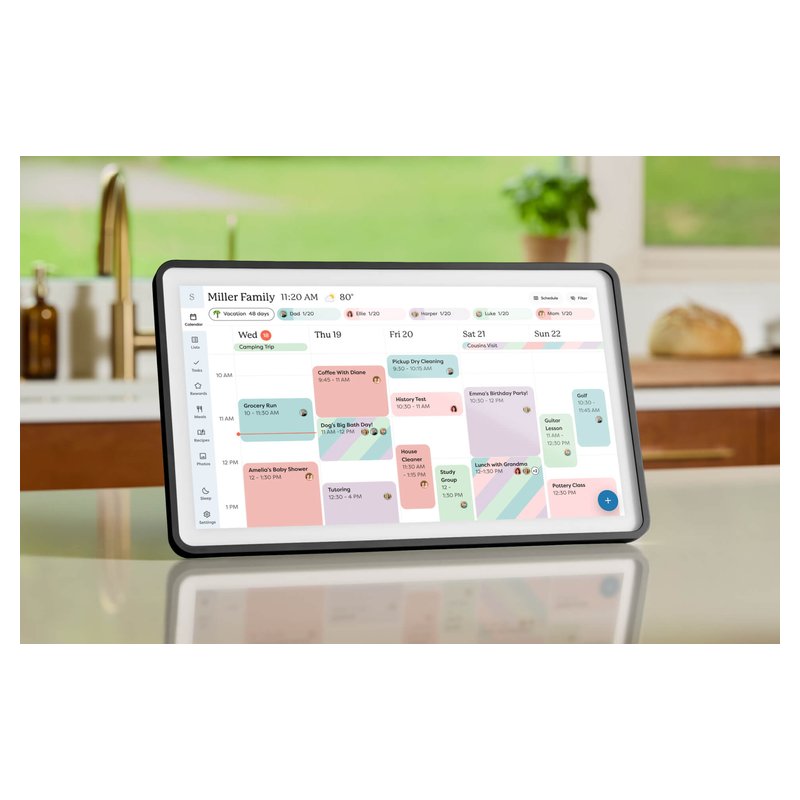
For most families, the best digital wall calendar is the Skylight Calendar 2: it syncs Google, iCloud, Outlook, Yahoo and Cozi, and its product page lists the chore and task manager as free. If you never want a yearly fee, choose the Cozyla Calendar Plus 2, which Cozyla says needs no paid plan.

Skylight Calendar 2 (15-inch) calendar
Our #1 pick

Skylight Calendar 2 (15-inch)

Mid-range price range

Screen15-inch class, 1080p touch
Syncs withGoogle, iCloud, Outlook, Yahoo, Cozi
SubscriptionOptional Plus, $79/yr per Skylight

See ratings & reviews ↗ · All 7 picks

Top picks at a glance

The best digital wall calendars, by what your family needs

Seven picks that cover how most households actually use a wall calendar. Each one is chosen for a reason, and each card says who should skip it.

Best overall#1
Skylight Calendar 2 (15-inch) calendar

Skylight Calendar 2 (15-inch)

Mid-range price range

A calendar-first 15-inch screen that syncs Google, iCloud, Outlook, Yahoo and Cozi, with a free Tasks Manager for chores and no camera or mic.

See options ›
Best without a subscription#2
Cozyla Calendar Plus 2 (24-inch) calendar

Cozyla Calendar Plus 2 (24-inch)

Premium price range

Cozyla says sync, chores, rewards and meal planning all work with no paid plan, on a 24-inch wall screen.

See options ›
Best large screen#3
Skylight Calendar Max (27-inch) calendar

Skylight Calendar Max (27-inch)

Premium price range

Skylight’s 27-inch, 2560 x 1440 wall display for big households, in portrait or landscape.

See options ›
Best for chores & routines#4
Hearth Display (27-inch) calendar

Hearth Display (27-inch)

Premium price range

A tall 27-inch screen built around kids’ routines, stars and rewards, if you’ll pay for the membership.

See options ›
Best value#5
Apolosign Digital Calendar (15.6-inch) calendar

Apolosign Digital Calendar (15.6-inch)

Budget price range

A 15.6-inch screen with a wall mount and desk stand in the box and, per Apolosign, no subscription.

See options ›
Best for Alexa homes#6
Amazon Echo Show 15 (2nd gen) calendar

Amazon Echo Show 15 (2nd gen)

Budget price range

A wall-mount Alexa display with a shared family calendar, lists and smart home control.

See options ›
Best for seniors#7
American Lifetime Day Clock (8-inch) calendar

American Lifetime Day Clock (8-inch)

Budget price range

Not a smart calendar: a plug-in day clock that spells out the day, date and time, with no Wi-Fi.

See options ›

Prices change often, so we show a price range instead of a number. Budget is under $300, Mid-range $300–$500, Premium over $500, based on typical list prices.

Find your match

Start from your household, not the brand

The right screen depends on who lives with it. Pick the line that sounds most like you.

Skylight Calendar 2 (15-inch) calendar

We have kids and a packed week

Start with

Skylight Calendar 2 (15-inch)

You want every parent’s calendar, kids’ chores and the week ahead on one screen everyone walks past.

Cozyla Calendar Plus 2 (24-inch) calendar

I refuse to pay a yearly fee

Start with

Cozyla Calendar Plus 2 (24-inch)

Several brands say their core features need no subscription. The trick is checking what “core” includes.

Skylight Calendar 2 (15-inch) calendar

Everyone here has an iPhone

Start with

Skylight Calendar 2 (15-inch)

You need iCloud calendars to show up reliably, ideally with edits flowing back to your phones.

American Lifetime Day Clock (8-inch) calendar

It’s for my mom or dad

Start with

American Lifetime Day Clock (8-inch)

They may need a simple day-and-date display, or a calendar the family can update from a phone.

Apolosign Digital Calendar (15.6-inch) calendar

I want the lowest real cost

Start with

Apolosign Digital Calendar (15.6-inch)

Price the screen and any subscription together, over two or three years.

Skylight Calendar Max (27-inch) calendar

We need it readable across the room

Start with

Skylight Calendar Max (27-inch)

A big household or a big wall needs a 21- to 32-inch screen.

Our picks in detail

What each calendar does well, and who should skip it

Specifications, sync lists and subscription terms come from each brand. We have not tested or used these calendars ourselves. How we pick.

Best overall#1

Skylight Calendar 2 (15-inch)

Skylight’s current 15-inch calendar is the one to start with if you want a dedicated family screen that just shows the schedule. It reads Google, iCloud, Outlook, Yahoo and Cozi calendars, comes with both a wall mount and a countertop stand, and has no camera or microphone, according to Skylight.

Why it stands out

  • Syncs the calendars most US families already use: Google, Apple iCloud, Outlook, Yahoo and Cozi, plus TeamSnap and other links one-way (Skylight’s list).
  • Skylight’s product page lists the calendar, Tasks Manager, lists and phone app as free; Plus ($79 a year, per Skylight) adds meal planning, rewards, photos and Magic Import.
  • Wall or counter out of the box, in landscape or portrait, with swappable frames.
Screen15-inch class, 1080p touch
PlacementWall or counter (stand and mount included)
Syncs withGoogle, iCloud, Outlook, Yahoo, Cozi
SubscriptionOptional Plus, $79/yr per Skylight
CameraNone (no mic)

Good fit if

  • You want a calendar-first screen with no camera or microphone.
  • Your family is split between iPhone and Android.
  • You may want the meal-planning and rewards extras later.

Skip it if

  • You will not pay a yearly fee and want meal planning or rewards included — look at Cozyla Plus 2, Dragon Touch or Everblog.
  • You need it on a fridge: Reviewed notes it is not magnetized.

Buying from Skylight’s own store adds its 3-year “Skylight Promise”; Skylight says purchases made on Amazon are not covered by it.

Best without a subscription#2

Cozyla Calendar Plus 2 (24-inch)

Cozyla’s 24-inch Calendar Plus 2 is the strongest case for skipping a subscription: Cozyla says calendar sync, chores, rewards and meal planning all work without a paid plan. It is an Android 14 device with Google Play, so it doubles as a big wall tablet.

Why it stands out

  • Two-way sync with Google, iCloud (via an app-specific password), Outlook and CalDAV, plus Yahoo, Cozi or any calendar link.
  • Up to 8 profiles; chores with points and reminders; meal planner that builds a grocery list.
  • Rotating wall mount included, so it can hang in portrait or landscape.
Screen24-inch touch
PlacementWall (rotating mount included)
Syncs withGoogle, iCloud, Outlook, Yahoo, Cozi, CalDAV
SubscriptionNot required; optional AI plan
CameraNone built in

Good fit if

  • You want family features included in the price.
  • You like the idea of Google Play apps on the same screen.

Skip it if

  • You want the simplest possible screen for a grandparent: an Android tablet has more to learn.
  • You want a small counter display: look at the 15.6-inch models.

The optional Calendar Super plan ($69.99 a year, per Cozyla) adds Smart Planning, Smart Input, an Art Gallery and the unlimited AI Voice Agent. Reviewers at T3 found some invites did not sync until the phone app was opened.

Best large screen#3

Skylight Calendar Max (27-inch)

At 27 inches with a 2560 x 1440 screen, the Calendar Max is Skylight’s big-family option: a month view you can read from across a kitchen. It is wall-only and hangs in portrait or landscape, and it runs the same app and subscription as the smaller models.

Why it stands out

  • 2560 x 1440 on 27 inches (Skylight’s spec).
  • Portrait or landscape on the wall; dual 4W speakers, no camera or mic.
  • Same app and sync list as the 15-inch models.
Screen27-inch, 2560 x 1440 touch
PlacementWall only, portrait or landscape
Syncs withGoogle, iCloud, Outlook, Yahoo, Cozi
SubscriptionOptional Plus, $79/yr per Skylight
CameraNone (no mic)

Good fit if

  • You have a big household and a wall with space for a 25 lb screen.
  • You want to read the week from across the room.

Skip it if

  • You want to put it on a counter: there is no stand option.
  • You want new hardware soon: Skylight says it has no plans for a new Calendar Max.

Digital Trends’ review criticized the software for missing basics, such as crossing off events; check recent buyer reviews for whether that has changed.

Best for chores & routines#4

Hearth Display (27-inch)

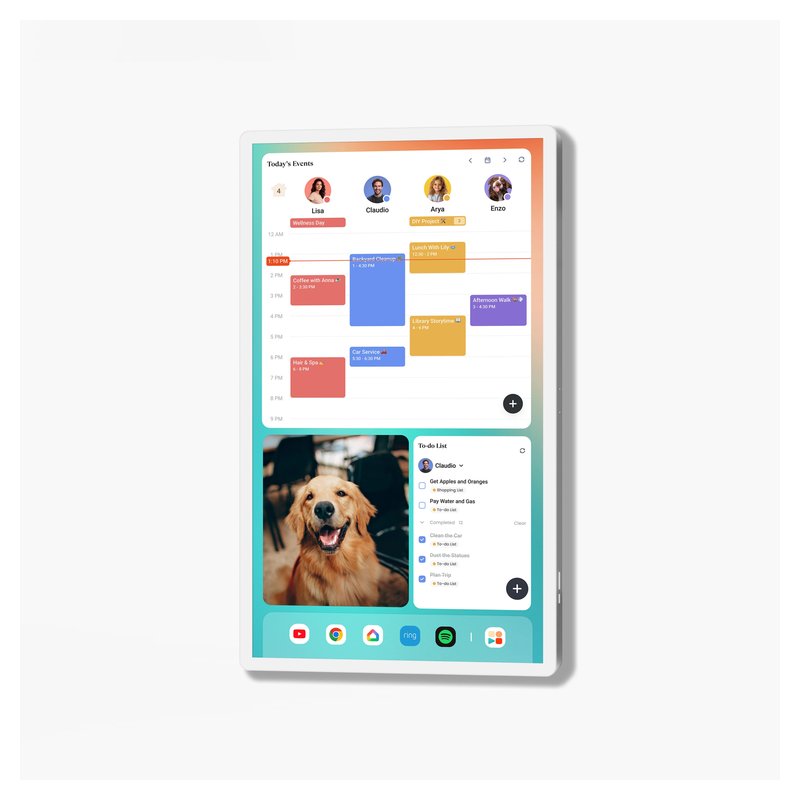
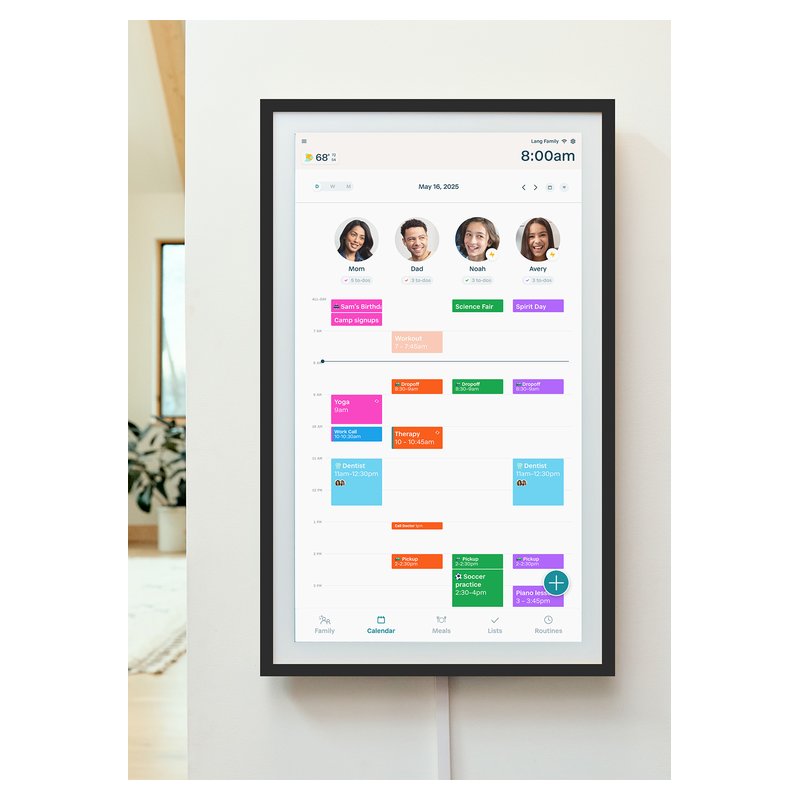
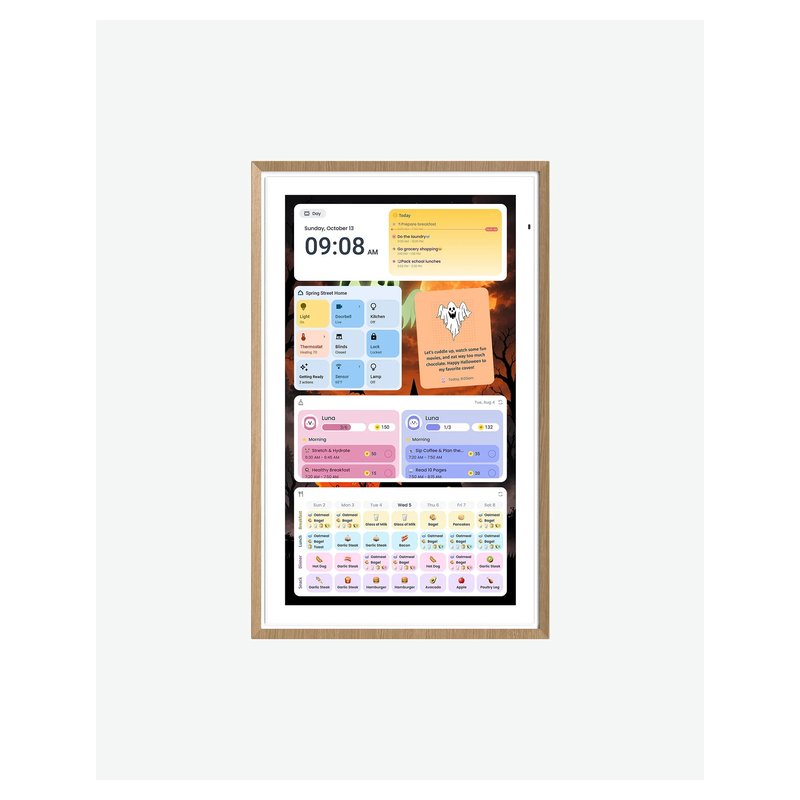
Hearth is a tall, portrait-only 27-inch screen built around routines, to-dos and rewards for kids. It is the most “family command center” of the group, and the most expensive to run: those routine and reward features need Hearth’s Family Membership.

Why it stands out

  • Kids earn stars for routines and to-dos and spend them on rewards you set, with streak tracking (Hearth’s description).
  • Hearth Helper turns a photo of a paper schedule or school lunch menu into events for a parent to approve.
  • Two-way sync with Google, so events added on the screen land in Google Calendar.
Screen27-inch touch, portrait
PlacementWall only (mount included)
Syncs withGoogle, Apple, Outlook, Cozi
SubscriptionFamily Membership, $9/mo per Hearth
CameraNot stated by Hearth

Good fit if

  • Your main goal is morning and bedtime routines for young kids.
  • You have a wall near an outlet and are happy to pay $9 a month (Hearth’s price) for the extras.

Skip it if

  • You want a counter display: Forbes notes it is not designed for a desk or counter.
  • You want to avoid an ongoing fee: lists, routines, rewards and meal planning all need membership.

Hearth’s own pages disagree on whether membership is needed just to set up the screen; plan on starting the 30-day trial.

Best value#5

Apolosign Digital Calendar (15.6-inch)

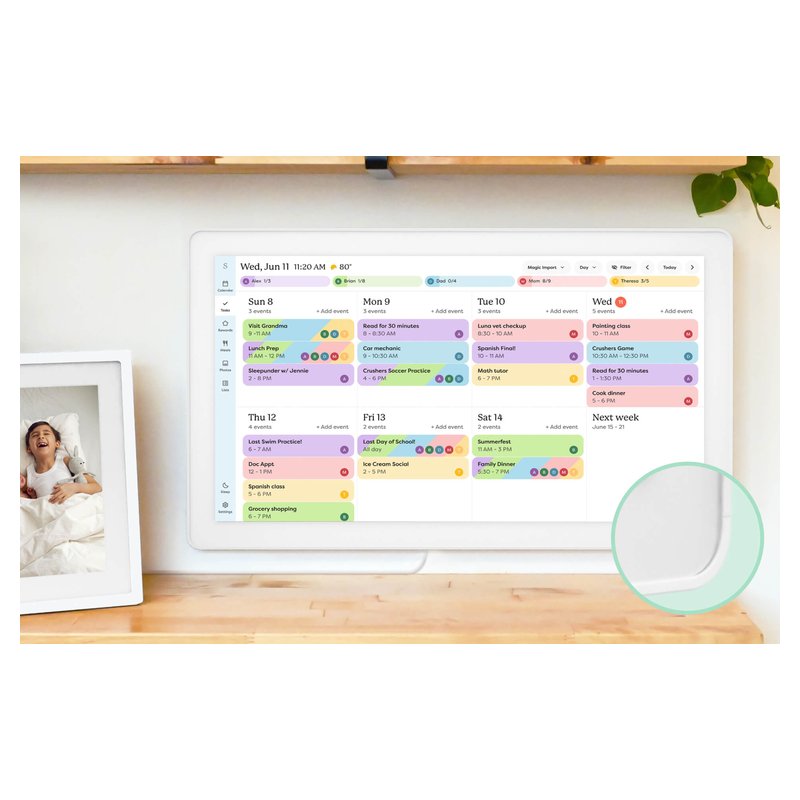
Apolosign’s 15.6-inch calendar comes with both a desk stand and a wall mount and, according to Apolosign, needs no subscription. It runs certified Android with Google Play and switches between a dedicated calendar mode and a normal Android mode.

Why it stands out

  • Syncs Google, Apple, Outlook, Yahoo and Cozi calendars (iCloud is added as a shared calendar).
  • Anti-glare 1080p screen; landscape or portrait.
  • Wall mount and desk stand both in the box; Wi-Fi 6.
Screen15.6-inch, 1080p anti-glare touch
PlacementWall or counter (both included)
Syncs withGoogle, Apple, Outlook, Yahoo, Cozi
SubscriptionNot required, per Apolosign
CameraNone listed

Good fit if

  • You want a mid-size screen without a yearly fee.
  • You want the option of Google Play apps.

Skip it if

  • You want the most polished, calendar-only software — Skylight is simpler.
  • You want AI features without paying: a retail listing describes those as an optional subscription.
Best for Alexa homes#6

Amazon Echo Show 15 (2nd gen)

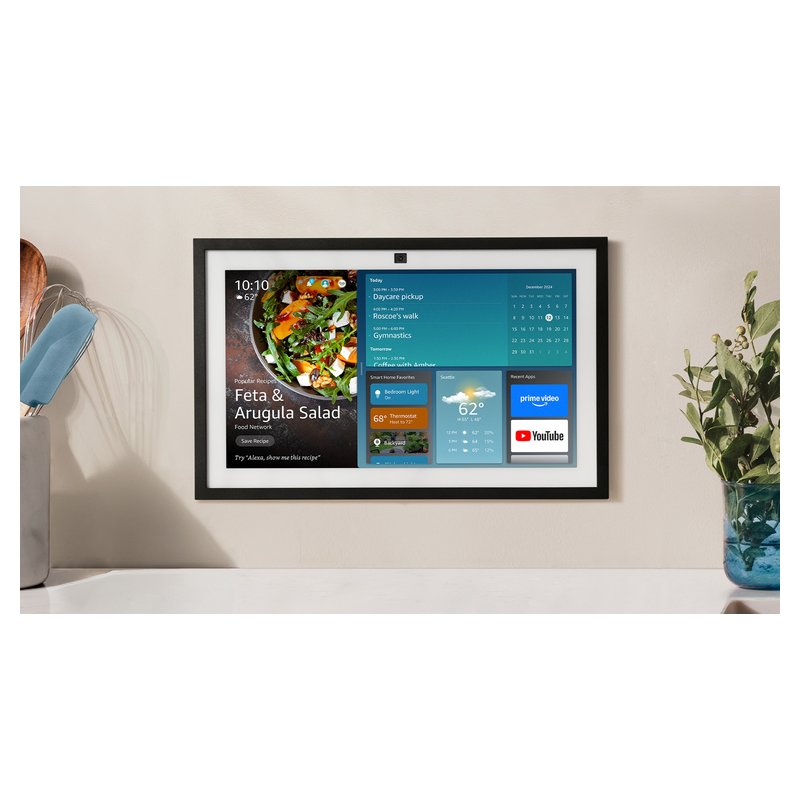
The Echo Show 15 is a 15.6-inch Alexa smart display that can hang on a wall and show a shared family calendar, lists and sticky notes. It is a good fit if you already live with Alexa, and a poor fit if you want a screen without a camera.

Why it stands out

  • Links Google, Microsoft and Apple calendars through the Alexa app.
  • Doubles as a smart home controller with a built-in hub, per Tom’s Guide.
  • Wall mount and remote in the box.
Screen15.6-inch, 1080p touch
PlacementWall (mount included); stand extra
Syncs withGoogle, Microsoft, Apple via Alexa app
SubscriptionAlexa+ $19.99/mo or free with Prime
Camera13MP with physical shutter

Good fit if

  • Your home already uses Alexa.
  • You want smart home control and Alexa as well as a calendar.

Skip it if

  • You want no camera in the kitchen: it has a 13MP camera (with a physical shutter).
  • You want several family calendars side by side: Forbes found it weaker at showing more than one.

Amazon has also announced a newer Echo Show 16; check which model is current when you buy.

Best for seniors#7

American Lifetime Day Clock (8-inch)

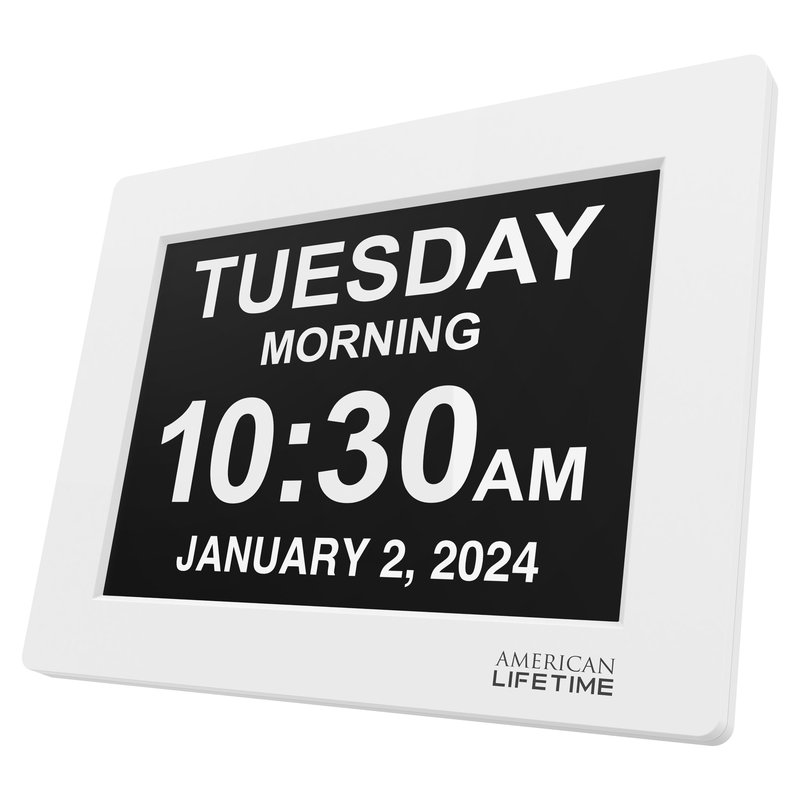
This is not a smart calendar: it is an 8-inch day clock that spells out the day, part of the day, date and time with no abbreviations. It needs no Wi-Fi, account or app, which is the point for someone who just needs to know what day it is.

Why it stands out

  • Shows the time, part of day (morning, afternoon), weekday, date and month in large words.
  • Plug in and go: no Wi-Fi, no subscription, button controls rather than a touchscreen.
  • Up to five alarms or reminders and auto-dimming, per American Lifetime.
Screen8-inch, non-touch
PlacementTable stand or wall hook
Syncs withNone (no Wi-Fi)
SubscriptionNone
CameraNot listed

Good fit if

  • An older relative only needs the day and date, not a schedule.
  • Their home has no Wi-Fi.

Skip it if

  • You want to add appointments remotely — a synced calendar like Skylight does that.
  • You want automatic daylight saving: BestReviews noted it does not adjust on its own.

Side by side

Compare the specs

Scroll sideways on a phone. Subscription prices are each brand’s own and can change.

CalendarBest forScreenPlacementSubscriptionCameraPrice range
Skylight Calendar 2 (15-inch)Best overall15-inch class, 1080p touchWall or counter (stand and mount included)Optional Plus, $79/yr per SkylightNone (no mic)Mid-rangeDetails ›
Cozyla Calendar Plus 2 (24-inch)Best without a subscription24-inch touchWall (rotating mount included)Not required; optional AI planNone built inPremiumDetails ›
Skylight Calendar Max (27-inch)Best large screen27-inch, 2560 x 1440 touchWall only, portrait or landscapeOptional Plus, $79/yr per SkylightNone (no mic)PremiumDetails ›
Hearth Display (27-inch)Best for chores & routines27-inch touch, portraitWall only (mount included)Family Membership, $9/mo per HearthNot stated by HearthPremiumDetails ›
Apolosign Digital Calendar (15.6-inch)Best value15.6-inch, 1080p anti-glare touchWall or counter (both included)Not required, per ApolosignNone listedBudgetDetails ›
Amazon Echo Show 15 (2nd gen)Best for Alexa homes15.6-inch, 1080p touchWall (mount included); stand extraAlexa+ $19.99/mo or free with Prime13MP with physical shutterBudgetDetails ›
American Lifetime Day Clock (8-inch)Best for seniors8-inch, non-touchTable stand or wall hookNoneNot listedBudgetDetails ›

Want to see more than our seven picks?

Browse more family calendars ›

Not sure where to start?

Most families do well with a 15-inch screen that syncs the calendars they already use. The Skylight Calendar 2 comes with a stand and a wall mount, and Skylight’s product page lists its Tasks Manager as free. Screen size, frame color and what’s in the box are on the product page.

How to choose

Five things that matter more than the brand

Most disappointments come from a calendar that does not sync the way you expected, or a subscription you did not price in.

01

Match the calendars you already use

Check the brand’s sync list against what your family runs on: Google, iCloud, Outlook, Yahoo, Cozi or TeamSnap. Then check direction. Skylight’s help center says one-way calendars cannot receive changes made on the screen.

02

Price the subscription, not just the screen

Skylight Plus is $79 a year and Hearth’s membership is $9 a month, according to each brand, and both can change. Cozyla, Apolosign, Everblog and Dragon Touch say their core features need no plan. Add two or three years of fees before you compare.

03

Pick the size for the room

A 15-inch screen suits a counter or a small kitchen wall. For a big family or a hallway, 21 to 27 inches is easier to read. Skylight’s 27-inch Max and the Hearth Display are wall-only.

04

Plan for the power cord

Every smart calendar here plugs into the wall. Skylight says its calendars need power and Wi-Fi at all times. Hearth recommends a licensed electrician for a recessed outlet if you want no visible cord.

05

Decide how much “family hub” you need

Chore charts, rewards, meal plans and lists are where brands differ most, and where subscriptions bite. If you only need the schedule, any synced screen will do.

FAQ

Digital wall calendars: questions answered

Straight answers to what families ask before buying, drawn from brand help centers, Apple, Google and Microsoft support pages, and independent reviews.

Are they worth it?5

What is a digital wall calendar?

It is a touchscreen that shows your family’s schedule pulled from the calendars you already use, such as Google, iCloud or Outlook. Most also add chore charts, lists and meal plans. Unlike a paper calendar, it updates when anyone adds an event from their phone.

Is a digital wall calendar worth it?

It is worth it if your family already keeps calendars on phones and the problem is that nobody sees them. A shared screen in the kitchen puts everyone’s plans in one place. If your family will not keep phone calendars up to date, a screen will not fix that.

Who are digital family calendars best for?

Busy households with several schedules: two working parents, kids’ activities and shared chores. Pew Research found in 2026 that 54% of US working parents say balancing work and family is difficult. Single people often do fine with a phone calendar alone.

What is the best digital wall calendar overall?

For most families, the Skylight Calendar 2. It syncs Google, iCloud, Outlook, Yahoo and Cozi, includes a stand and wall mount, lists its chore and task manager as free, and has no camera or microphone, according to Skylight. Its paid Plus plan is optional.

Is a digital calendar better than a paper one?

It is better at staying current: an event added on a phone appears on the wall. Paper wins on cost, needs no power or Wi-Fi, and never needs a software update. Many families with a single shared schedule are happy with paper.

Ready to put the week on the wall? Our best overall pick suits most families.See our #1 pick
How they work5

How does a digital wall calendar work?

You connect it to your family’s online calendars through the brand’s app, and it shows those events on the screen, color-coded by person. Changes made on phones appear on the display. Some brands also send changes made on the screen back to your calendar.

Do digital wall calendars need Wi-Fi?

Smart calendars do. Skylight says its calendar needs Wi-Fi at all times to work, and Hearth needs Wi-Fi to set up. A simple day clock, like the American Lifetime model, needs no Wi-Fi because it only shows the date and time.

Are digital wall calendars battery powered?

Almost never. Skylight says its calendars must be plugged in and cannot run on a battery. The big screens from Hearth, Cozyla and Apolosign also use a wall adapter. Plan where the outlet is before you choose a spot.

Can I add events from my phone?

Yes. Brands such as Skylight, Hearth and Cozyla have companion apps, and events added to a synced Google, iCloud or Outlook calendar also show up. Whether edits made on the screen go back to your phone depends on the brand and the calendar type.

What is the difference between one-way and two-way sync?

With two-way sync, an event added on the wall screen also lands in your phone calendar. With one-way sync, the screen only reads your calendar. Skylight says changes made on its device cannot sync back to one-way calendars.

Subscriptions and cost5

Do digital wall calendars need a subscription?

Some do for their best features. Skylight’s calendar works without a plan, but Plus ($79 a year, per Skylight) adds meal planning, rewards and photos. Hearth’s Family Membership ($9 a month) covers lists, routines and rewards. Cozyla, Apolosign, Everblog and Dragon Touch say their core features are free.

What does Skylight Plus include?

Skylight says Plus adds Magic Import, meal planning, rewards, a photo screensaver and Disney Mode. Its product page lists the calendar views, color coding, Tasks Manager, lists and the mobile app as free. One Skylight Plus page lists the chore chart and calendar sync under Plus, so check before you buy.

What does the Hearth membership cover?

Hearth says its Family Membership, $9 a month or $86.40 a year, covers lists and to-dos, routines, stars and rewards, meal planning and its Hearth Helper AI. Its help center says you keep profiles, color coding and the synced family calendar without it, but its product page says membership is required to set up the display.

Which digital calendar has no subscription?

Cozyla says its Calendar Plus 2 needs no paid plan for sync, chores, rewards or meal planning. Everblog says all HomeCal features are free. Apolosign, Dragon Touch and Bsimb also say no subscription is required. Optional paid extras still exist at some of these brands.

How much does a digital wall calendar cost in total?

Add the screen and two or three years of any plan. A Premium-tier Hearth adds $86.40 a year for membership, per Hearth. A Skylight Calendar 2 plus Plus adds $79 a year to the screen price. No-subscription screens cost only the hardware.

Want family features without a yearly fee?See the no-fee pick
Calendar sync5

Do digital wall calendars sync with Google Calendar?

Yes, every smart calendar here lists Google. Hearth and Cozyla say their Google sync is two-way, and Skylight lists Google as two-way too. Google can also create a shared family calendar automatically when you set up a Google family group.

Do they work with iPhone and iCloud calendars?

Most do. Skylight, Cozyla, Apolosign, Dragon Touch and Everblog all list Apple calendars. Cozyla says iCloud needs an app-specific password. Skylight’s help pages disagree on whether iCloud sync is two-way, so treat it as read-only until you confirm.

Do they work with Outlook?

Skylight, Hearth, Cozyla, Apolosign, Dragon Touch and Everblog all list Outlook. Skylight lists Outlook as one-way. Microsoft notes that subscribed calendars in Outlook.com usually refresh about every 3 hours but can take more than 24.

Can a digital calendar show Cozi or TeamSnap?

Several can. Skylight, Hearth, Apolosign, Dragon Touch and Everblog list Cozi; Skylight and Everblog list TeamSnap. Cozi says its calendar links are read-only, so events added on the wall will not go back into Cozi.

Why is my digital calendar missing events?

Usually it is a permissions issue. Skylight says you must own a calendar, not just view it, to sync it. Subscribed links can also lag: Cozi says Google can take up to 48 hours to pick up changes from an iCal link.

Mostly iPhones at home?See the iPhone picks
Size and mounting5

What size digital wall calendar should I get?

A 15-inch screen suits a counter or small kitchen wall. For a family of five or more, or a hallway you read from a distance, 21 to 27 inches is easier. Skylight’s 27-inch Max is 2560 x 1440; most 21.5-inch screens are 1080p.

Can I put a digital calendar on the counter?

Smaller ones, yes. Skylight’s 15-inch includes a stand and a wall mount, and Apolosign’s 15.6-inch includes both. Skylight’s 27-inch Max and the Hearth Display are wall-only.

Can a digital calendar go on the fridge?

Not easily. Reviewed notes the Skylight Calendar 2 is not magnetized for fridge use, and most screens here mount on a wall or sit on a stand. Everblog lists a separate FridgeCal model for that job.

How do you hide the power cord?

Use a paintable cord raceway, or have an electrician fit a recessed outlet behind the screen. Hearth recommends a licensed electrician for that, and Cozyla sells a cord kit of four raceways. Do not run an ordinary power cord inside the wall.

Portrait or landscape: which is better?

Landscape suits a week or month grid; portrait suits a day list and to-dos. Skylight Calendar 2, Skylight Max, Apolosign and Cozyla Plus 2 can hang either way. Hearth is portrait only.

Need a big screen for a big wall?See the large picks
Families and kids5

Can kids use a digital family calendar?

Yes, and chore charts are designed for them. Hearth lets kids earn stars for routines and spend them on rewards you set. Cozyla’s chores support points, reminders and repeat rules. A touchscreen lets kids check off tasks without a phone.

Do digital calendars have chore charts?

Most do. Skylight’s product page lists its Tasks Manager as free, though one Plus page lists the chore chart under Plus; Cozyla, Dragon Touch and Everblog include chores with no plan. Hearth’s routines and rewards need its membership, and Skylight’s rewards need Plus.

Can a digital calendar do meal planning?

Many can. Cozyla says its meal planner builds a grocery list and tracks your pantry, with no paid plan. Skylight’s meal planning needs Plus, and Hearth’s needs its membership. Everblog includes meal planning and a food inventory.

How many family members can a digital calendar handle?

Cozyla supports up to 8 profiles. Hearth says it allows unlimited profiles, and Skylight gives each household member a profile with no stated cap. For comparison, Apple Family Sharing and Google family groups both top out at six people.

Can it read a school schedule from a photo?

Some can, for a fee. Skylight’s Magic Import (Plus) turns emails, paper schedules and PDFs into events. Hearth Helper turns photos of paper schedules into events, with membership. Cozyla’s Smart Input is part of its optional paid plan.

Curious how real families get on with chores and routines?What families say
Seniors, privacy and setup5

What is the best digital calendar for an elderly parent?

It depends on what they need. For knowing the day and date, a plug-in day clock is simplest and needs no Wi-Fi. If family members should add appointments from their phones, a synced calendar like the Skylight Calendar 2 does that.

Do digital calendars help with memory loss?

They are a reminder tool, not a treatment. The National Institute on Aging suggests memory tools such as calendars and notes, and the Alzheimer’s Association says people in the early stage may need cues and reminders. Talk to a doctor about any memory changes.

Do digital wall calendars have cameras?

Some do. Skylight says its Calendar 2 and Calendar Max have no camera and no microphone. The Echo Show 15 has a 13MP camera with a physical shutter. Apolosign, Everblog and Cozyla list microphones for voice features but no camera.

Can I use an old iPad as a wall calendar?

Yes. Apple’s Guided Access locks an iPad to a single app, such as your calendar. You will still need a wall mount and a permanent power cable, and the iPad will not add chore charts or family profiles on its own.

How long does setup take?

Usually one sitting: connect Wi-Fi, create profiles in the app, then link each person’s calendar. Calendars you only view, rather than own, may not sync. Skylight says you must be a calendar’s direct owner to add it.

Shopping for an older relative?See picks for seniors

How we pick

How this guide is put together

  • We compare each brand’s published specifications: screen size and resolution, placement, calendar sync and profiles.
  • We read each brand’s subscription page and help center to see what is free and what is paid.
  • We read independent reviews and look for agreement between sources, and we say when brands contradict themselves.
  • We have not tested or used these calendars ourselves, and we do not take payment for placement.

What a digital calendar can and cannot do

A wall screen shows the schedule your family already keeps. It cannot make anyone enter their plans, and it needs power and Wi-Fi to stay current. Subscription terms change, so check the brand’s plan page before you buy.

Read how we pick →

One screen, everyone’s week

Match the calendar to the services your family already uses, price any subscription over a few years, and pick a size for the wall you have. If you are unsure, start with our best overall pick.